Screen Time
the entitlement the Lock tab needs.
The Lock tab uses Apple's Screen Time frameworks (FamilyControls, ManagedSettings, DeviceActivity). They work in development builds on a real device. To ship them on TestFlight or the App Store, Apple must approve the Family Controls (Distribution) entitlement for each of the three bundle IDs. Request it as soon as your bundle IDs are final: approval can take weeks.
01How the lock works
- The user taps Allow Screen Time. The app calls
AuthorizationCenter.shared.requestAuthorization(for: .individual): the person locks apps on their own device, not a child's (Lock/LockModel.swift). - The user picks apps, categories or websites with Apple's
FamilyActivityPicker. The app only receives opaque tokens, never app names. The selection is saved in the App Group (LockShared.selection). - Lock now (15, 30, 60 or 120 minutes) raises a shield over the chosen apps with
ManagedSettingsStoreand schedules a one-offDeviceActivitywindow so that iOS ends the lock even if the app is closed. - Quiet hours every day schedules a repeating window (default 22:00 to 07:00; windows may cross midnight).
- iOS wakes the NescrollMonitor extension at the start and end of each window; it raises or lowers the shield (
Monitor/MonitorExtension.swift). - When the user opens a locked app, iOS asks the NescrollShield extension what to show: a title, the minutes left or "Quiet hours", a hint to open your app, and how many times the shield was hit today (
Shield/ShieldExtension.swift).
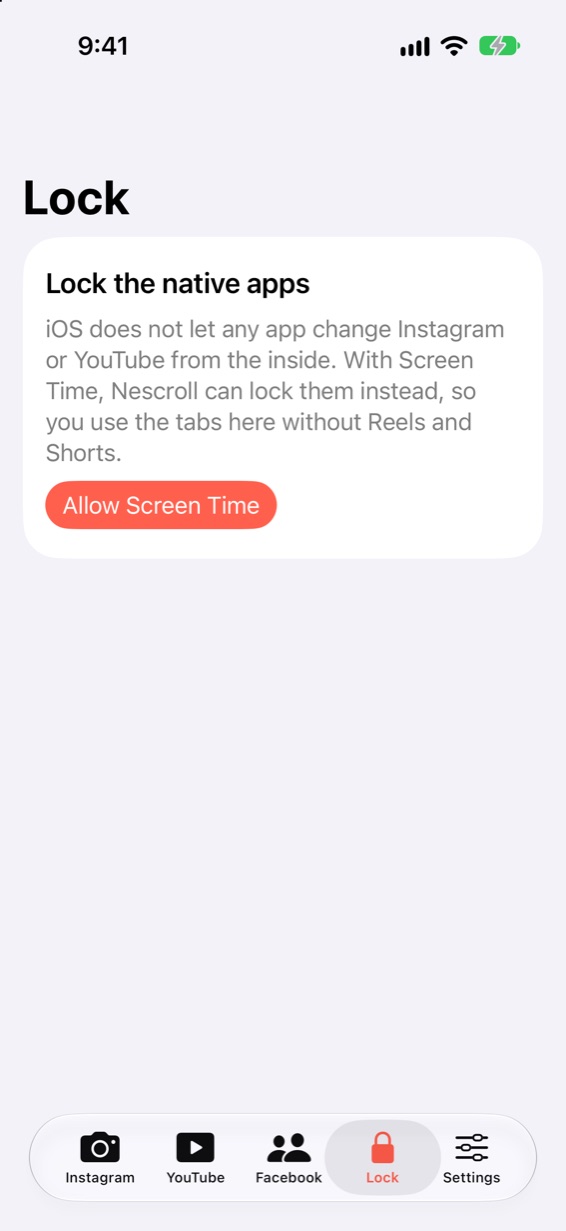
The user can end a timed lock at any time with End lock, and switch quiet hours off. The shield has one OK button and no unlock or "open the calm version" button. This is a personal focus aid, not parental control.
02Simulator and devices
- The Simulator cannot grant Screen Time. In the Simulator the Lock tab shows the "Allow Screen Time" card only. Test locks on a real iPhone or iPad with iOS 17 or newer.
- Screen Time must be on in iOS Settings. If the request fails, the app says "Screen Time access was not granted. Turn on Screen Time in iOS Settings and try again."
- Development builds from Xcode work on your device with development signing.
03Where the entitlement is declared
com.apple.developer.family-controls: true is set in the entitlements → properties of all three shipping targets in project.yml: NoReels, NescrollMonitor and NescrollShield. XcodeGen writes it into NoReels/NoReels.entitlements, Monitor/Monitor.entitlements and Shield/Shield.entitlements. The same three targets carry the App Group.
04Request the distribution entitlement
- Finish your rebrand so the three bundle IDs are final (Rebrand). Register them in the Apple Developer website under Certificates, Identifiers & Profiles → Identifiers, with the App Groups and Family Controls capabilities.
- Open Apple's request form for the Family Controls (Distribution) entitlement: developer.apple.com/contact/request/family-controls-distribution. Apple requires the Account Holder of the team to submit it.
- Submit one request per bundle ID: the app, the monitor extension and the shield extension. Describe the use honestly: an individual user locks chosen apps on their own device for a set time or during daily quiet hours.
- Wait for Apple's answer. Approval can take weeks. When it is granted, the capability appears for distribution on those identifiers; regenerate your provisioning profiles (automatic signing does this).
- Archive and upload only after all three are approved (Build and release).
Without the distribution approval, an archive that contains the Family Controls entitlement cannot be distributed. If you want to ship the browser tabs first, you have to remove the Lock feature for that release: the Lock tab in ContentView.swift, the two extension targets and their dependencies, the com.apple.developer.family-controls lines and the Shared source from project.yml. The author has not tested such a reduced build.